Welcome to Remind Me Near You!
Introduction
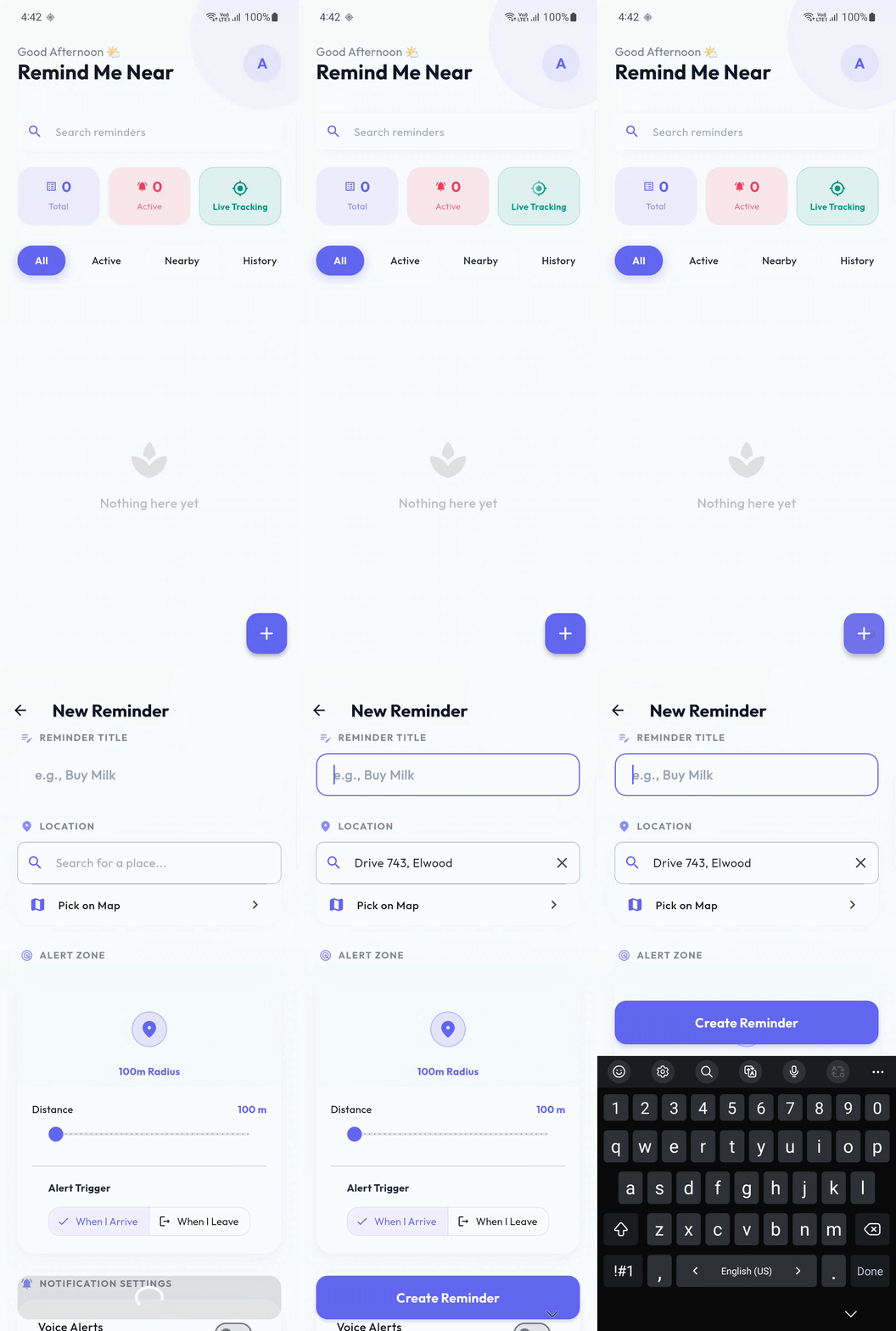
Welcome to the Remind Me Near You Master Suite. This application is a high-performance location utility built with Flutter 3.38.9. It enables users to set triggers based on circular geofences with background monitoring and TTS notifications.
This documentation provides a systematic, professional roadmap for customizing, configuring, and launching your professional application service.
Flutter Installation
To begin, you must have the Flutter SDK installed on your workstation. Follow these steps for a standard installation:
- 1. Download SDK: Visit the official Flutter docs and download the SDK matching your OS.
- 2. Extraction: Move the zip file to a permanent path (e.g.,
C:\flutteror~/flutter). - 3. Environment Variables: Add the
binfolder inside your flutter directory to your PATH string. - 4. Full Verification: Run the diagnostic check:
App Features
Our app focuses on high-end functionality and user experience:
- 📍 Smart Geofencing: Circular triggers with advanced background detection.
- 🎙️ TTS Integration: Speaks reminder text when arriving at a location.
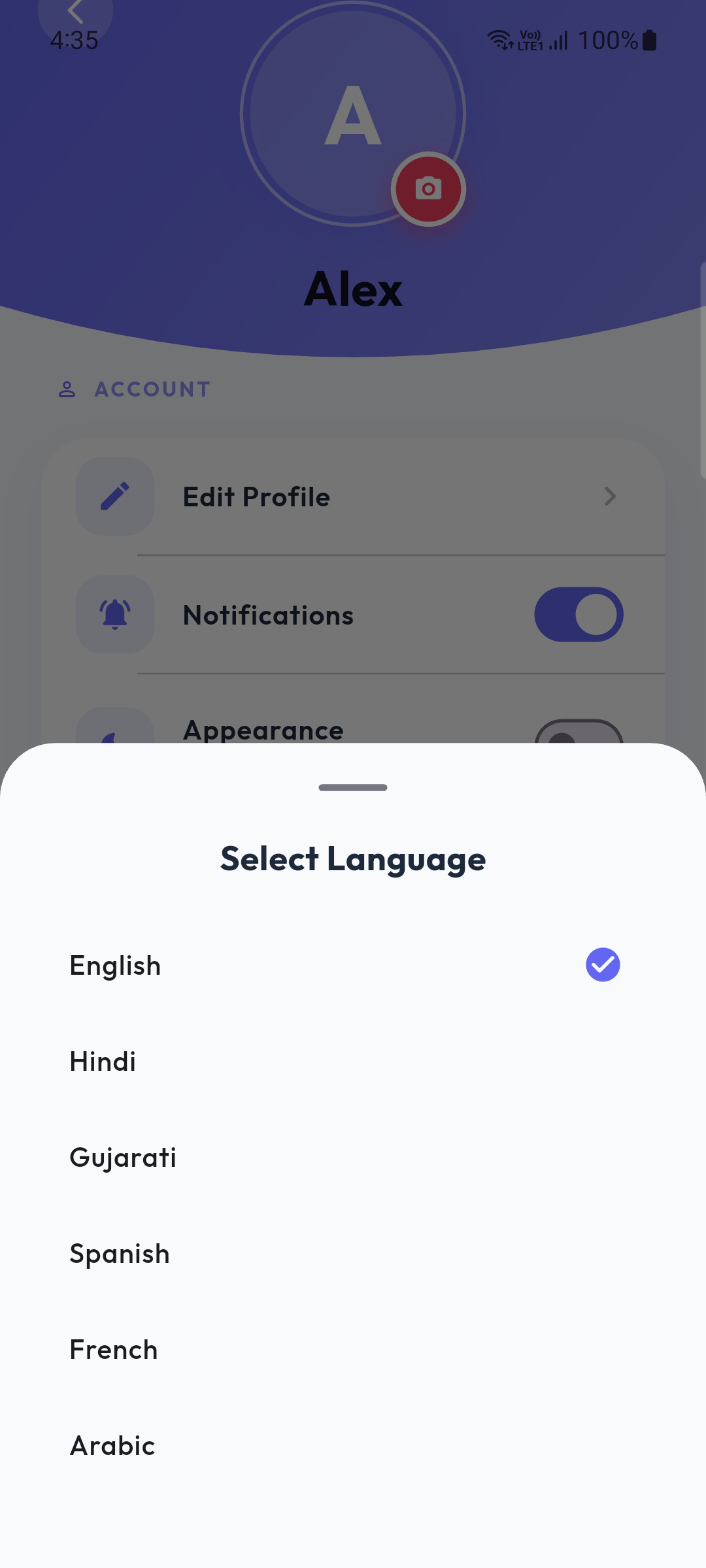
- 🌍 Global Localization: Pre-configured support for English, Hindi, Gujarati, Arabic, French, and Spanish.
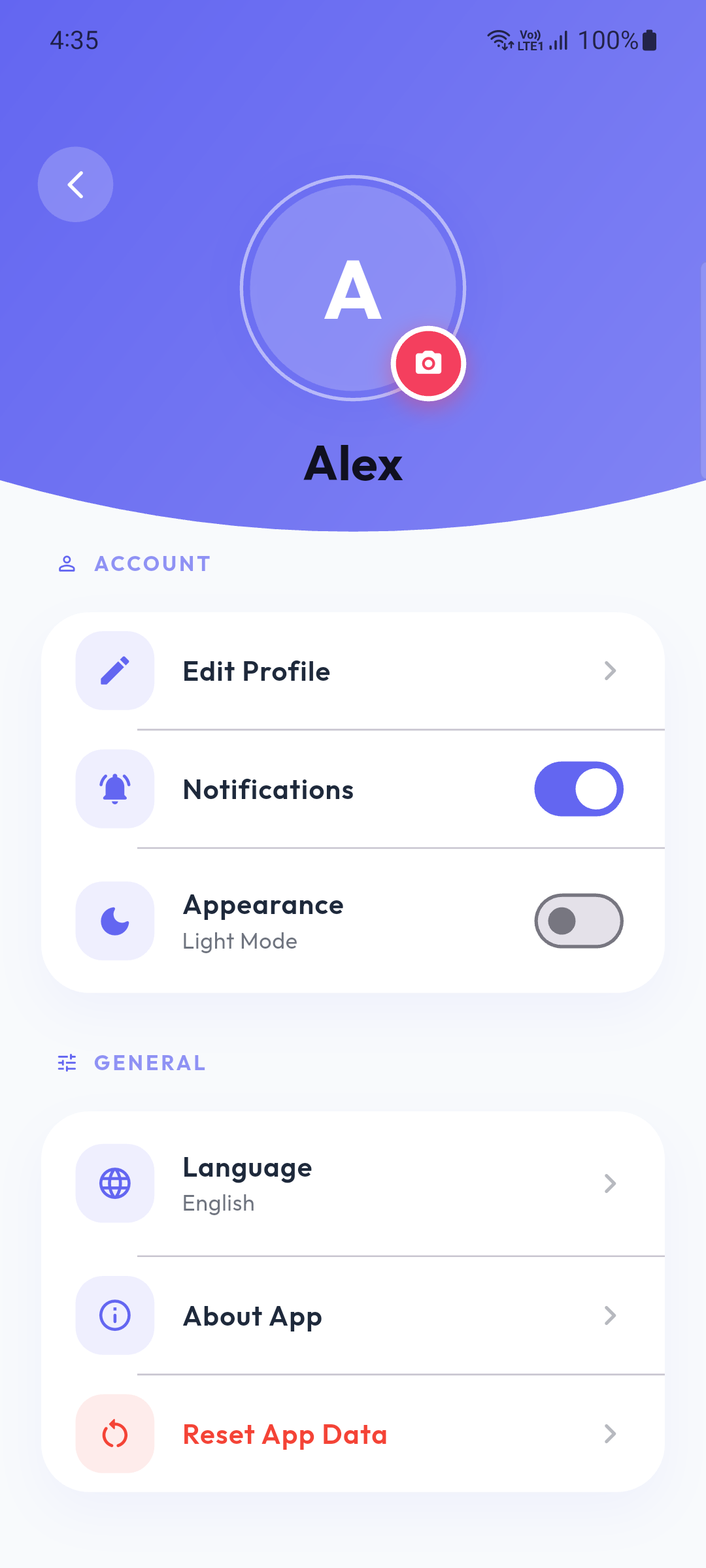
- 🎭 Avatar Suite: 10 hand-crafted profile icons.
- 🌙 Dynamic Mode: Full Light/Dark mode sync.
Installation
Follow these installation steps to initialize your source code:
- 1. Extract: Unzip your package.
- 2. Open: Launch VS Code/Android Studio in the root folder.
- 3. Sync: Fetch dependencies:
Enable Maps and Geocoding APIs on your Google Cloud Console to ensure map screens render the correct coordinates.
Create Project
To build your release binaries, follow these steps:
- 1. Clean Build: Run
flutter cleanfirst. - 2. Android Release: For production APK:
Release Build (Android)
To generate a signed release build for Android, follow these steps to configure your key properties and signing configurations.
- 1. Generate a Keystore: Run the following keytool command to create a keystore.
- 2. Create
key.properties: Create a file namedkey.propertiesin yourandroid/directory with the following content:
keyPassword=<password from previous step>
keyAlias=upload
storeFile=upload-keystore.jks
- 3. Update
build.gradle: Updateandroid/app/build.gradleto include your signing configuration:
def keystorePropertiesFile = rootProject.file('key.properties')
if (keystorePropertiesFile.exists()) {
keystoreProperties.load(new FileInputStream(keystorePropertiesFile))
}
android {
signingConfigs {
release {
keyAlias = keystoreProperties['keyAlias']
keyPassword = keystoreProperties['keyPassword']
storeFile = keystoreProperties['storeFile'] ? file(keystoreProperties['storeFile']) : null
storePassword = keystoreProperties['storePassword']
}
}
buildTypes {
release {
signingConfig signingConfigs.release
}
}
}
iOS Setup
To configure and build the application for iOS, follow these steps:
- 1. Install Pods: Navigate to the iOS directory and run pod install.
pod install
- 2. Xcode Configuration: Open the project in Xcode using the generated workspace file.
- 3. Update Signing: In Xcode, select the Runner target, go to Signing & Capabilities, and configure your Team ID and Bundle Identifier.
- 4. Info.plist Permissions: Ensure that location permission strings (
NSLocationAlwaysAndWhenInUseUsageDescriptionandNSLocationWhenInUseUsageDescription) exist in yourInfo.plistfile.
Troubleshooting
Common issues encountered and how to fix them:
- Google Maps API Key Error (Grey Map / Blank Map):
Ensure your Google Maps API key has been added toandroid/app/src/main/AndroidManifest.xmlandios/Runner/AppDelegate.swift. Furthermore, ensure the Maps SDK for Android and Maps SDK for iOS are explicitly enabled in your Google Cloud Console, and billing is active. - Location Permissions Denied:
If geofencing or location tracking isn't working, verify that you have accepted all location permissions. In Android, the background location access often requires explicitly selecting "Allow all the time" from the Settings.
Be advised that utilizing the Google Maps Platform API may incur external costs depending on traffic and usage limits. Review Google's official pricing limits before scaling your application.
Change Project Name
To customize the bundle identifier globally:
Change App Color
Customize the primary theme in lib/main.dart:
Change App Icon
Replace dist/remind_me_near_v1.0.0/Documentation/images/8.png and run:
Change App Language
Manage translations in lib/l10n/ and generate via:
Core Features
Remind Me Near You is engineered with a performance-first architecture to handle background location triggers with high reliability:
- 🛡️ Background Geofencing: Our engine utilizes the
geolocatorpackage to perform periodic location sampling (default every 30 seconds). This interval ensures high accuracy while minimizing battery drain. - 🎯 Radius Detection: Every location set by the user is treated as a Circular Geofence. The app calculates the distance between the current GPS coordinates and the target center point using the Haversine formula.
- 🎙️ TTS Queueing: Upon entering a geofence radius, the
flutter_ttsengine is initialized. It retrieves the specific reminder text and speaks it out loud in the user's selected language, even if the phone is in the user's pocket. - 💾 Data Persistence: All reminders are stored locally for maximum privacy. We use SharedPreferences for global settings and a persistent local registry for the reminder list to ensure data is not lost on app restart.
- 🔋 Battery Efficiency: The background service is optimized to stop tracking when no active reminders are present, ensuring zero background consumption when not needed.
Change Log
- 🚀 Initial Release: Stable launch of Remind Me Near You.
- 📍 Geofencing: High-precision background location triggers.
- 🎙️ TTS Engine: Automated Text-to-Speech alerts on arrival.
- 🌍 Language Suite: Support for 6 major global languages.
- 🎭 Avatars: 10+ personalized profile character options.
- 🌓 Theming: Seamless Light and Dark mode transition.